

ImgSera for Windows
Create. Enhance. Transform.
ImgSera is a desktop image studio for people who prepare images for real work. Convert, enhance and prepare images — a professional studio, entirely on your PC.
- No account
- No uploads
- No telemetry
- Convert JPG, PNG, WEBP, BMP, TIFF and PDF with quality control and presets.
- Resize Percent or exact dimensions, aspect-ratio protected, Lanczos resampling.
- Compress Quality-targeted compression that reports exactly how much you saved.
- Batch Processing Queue hundreds of files with pause, resume, cancel and retry-failed.
- AI Enhance Real-ESRGAN 2× and 4× enlargement on your GPU or CPU.
- Background Removal U²-Net subject matting to transparent, white or black.
The product
Purpose-built tools, not one overloaded editor
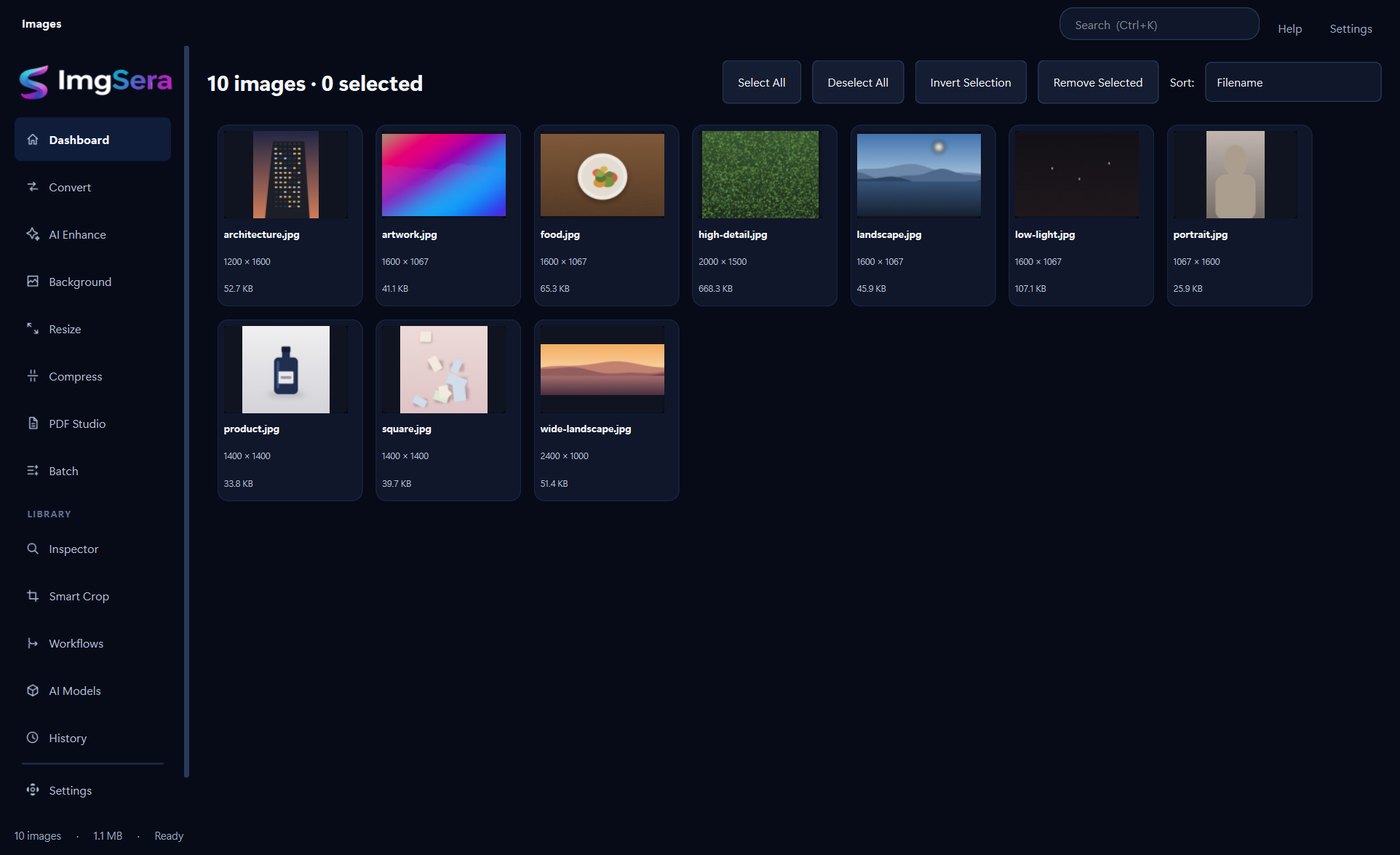
ImgSera is organised around the jobs you actually do. Pick a tool, adjust its settings, watch the result, export.
Convert
One pipeline for every format
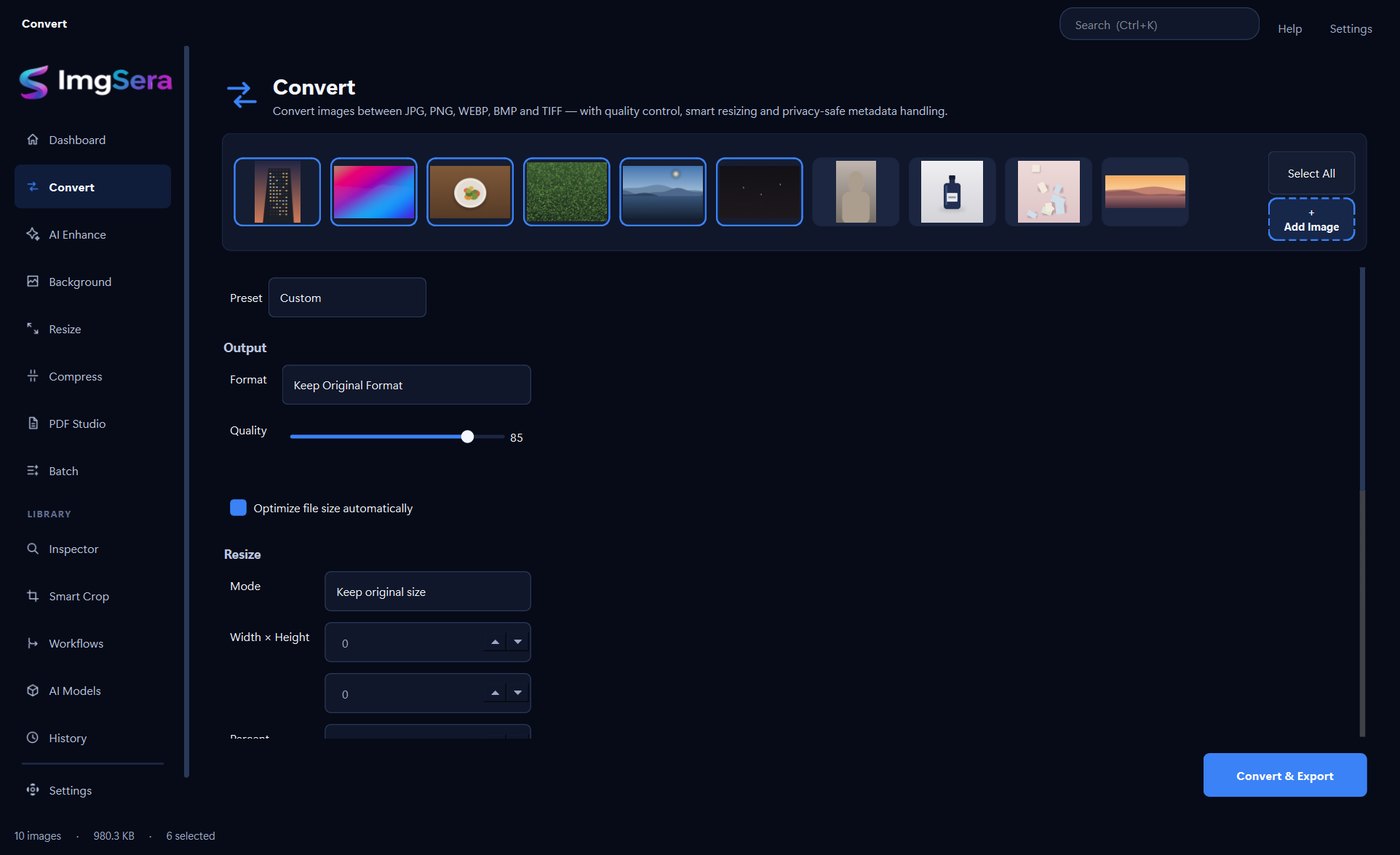
Move images between JPG, PNG, WEBP, BMP and TIFF with quality control, smart resizing and privacy-safe metadata handling — all resolved before you commit to an export.
- Quality control for lossy formats, with sensible presets
- Resize by mode, exact dimensions or percentage
- Automatic file-size optimisation
- Metadata privacy options, GPS stripped by default
AI Enhance
Real upscaling, on your own hardware
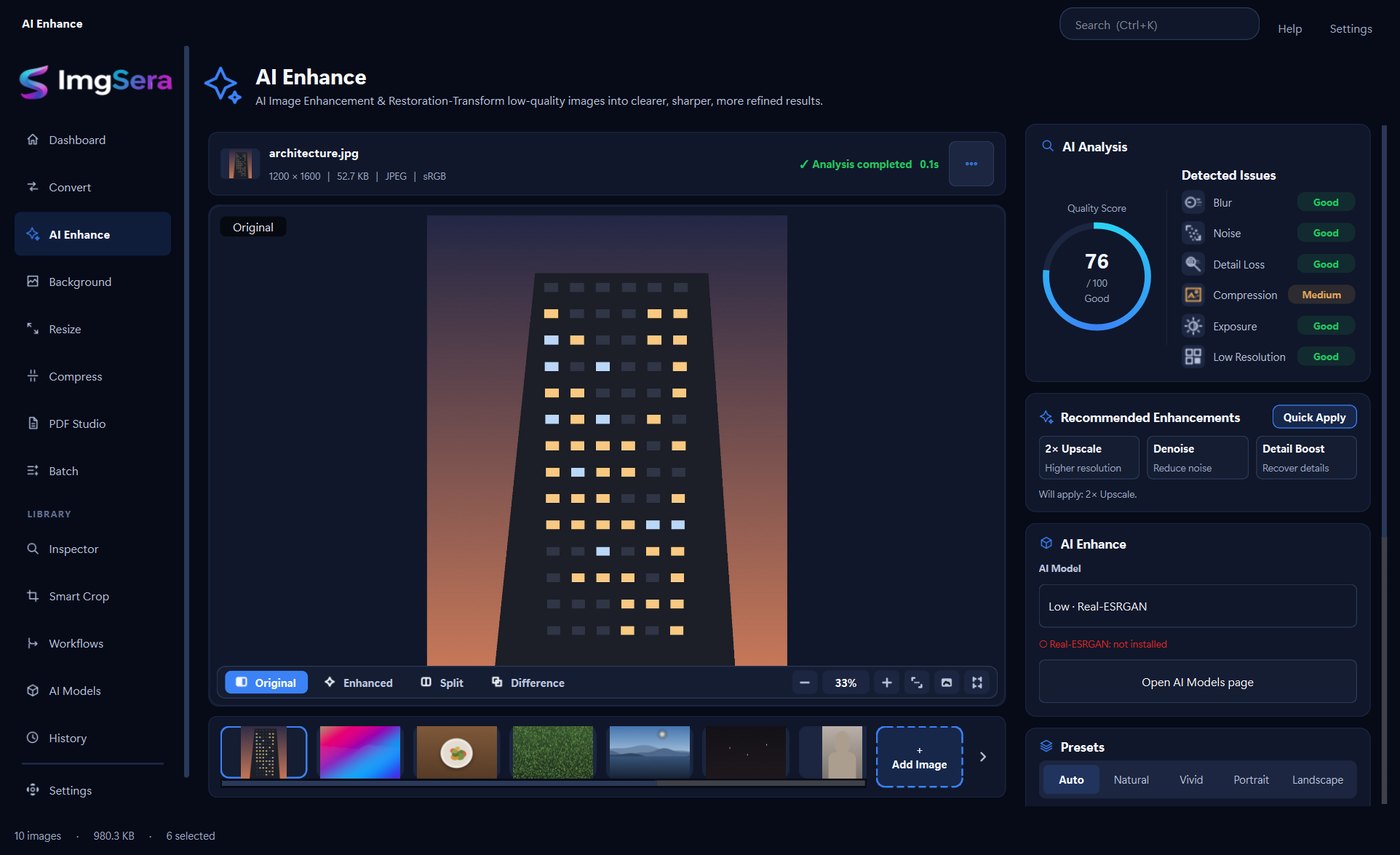
Upscale photographs to 2× or 4× with Real-ESRGAN. The model runs on your GPU through DirectML when one is available, and falls back to the CPU when it is not. It is not a preview and not a placeholder — it is the model running on your machine.
- 2× for everyday use, 4× for maximum detail
- DirectML GPU acceleration with automatic CPU fallback
- Downloads once, then works offline forever
Background
Subject-aware background removal
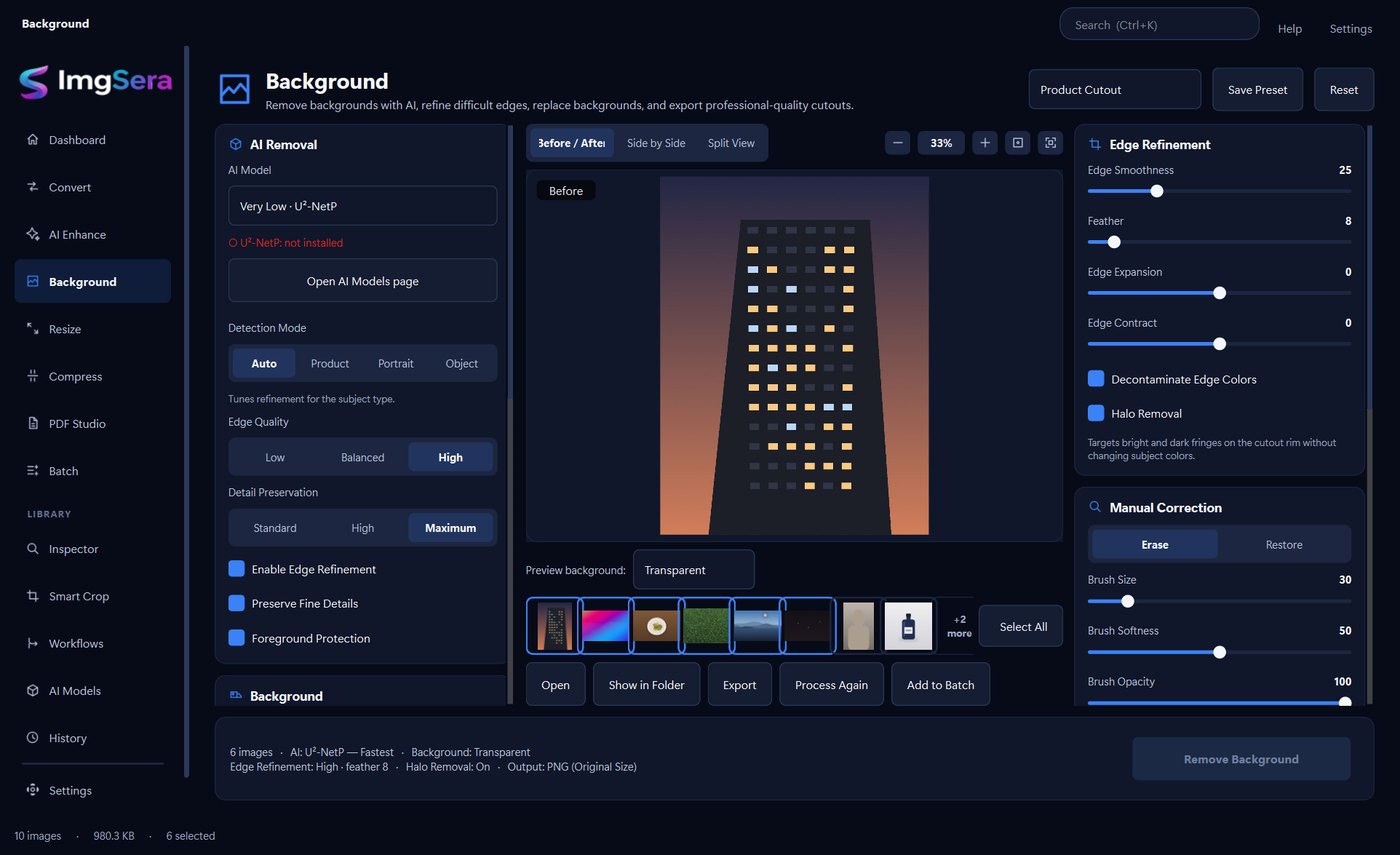
U²-Net matting lifts your subject out of the frame with soft, refined edges, then places it on transparency, white or black. Product photography is the obvious case, but anything with a clear subject benefits.
- A real salient-object model, not a hard threshold
- Transparent PNG, solid white or solid black output
- Soft edges that keep hair and fabric intact
Workflows
Chain operations into one pipeline
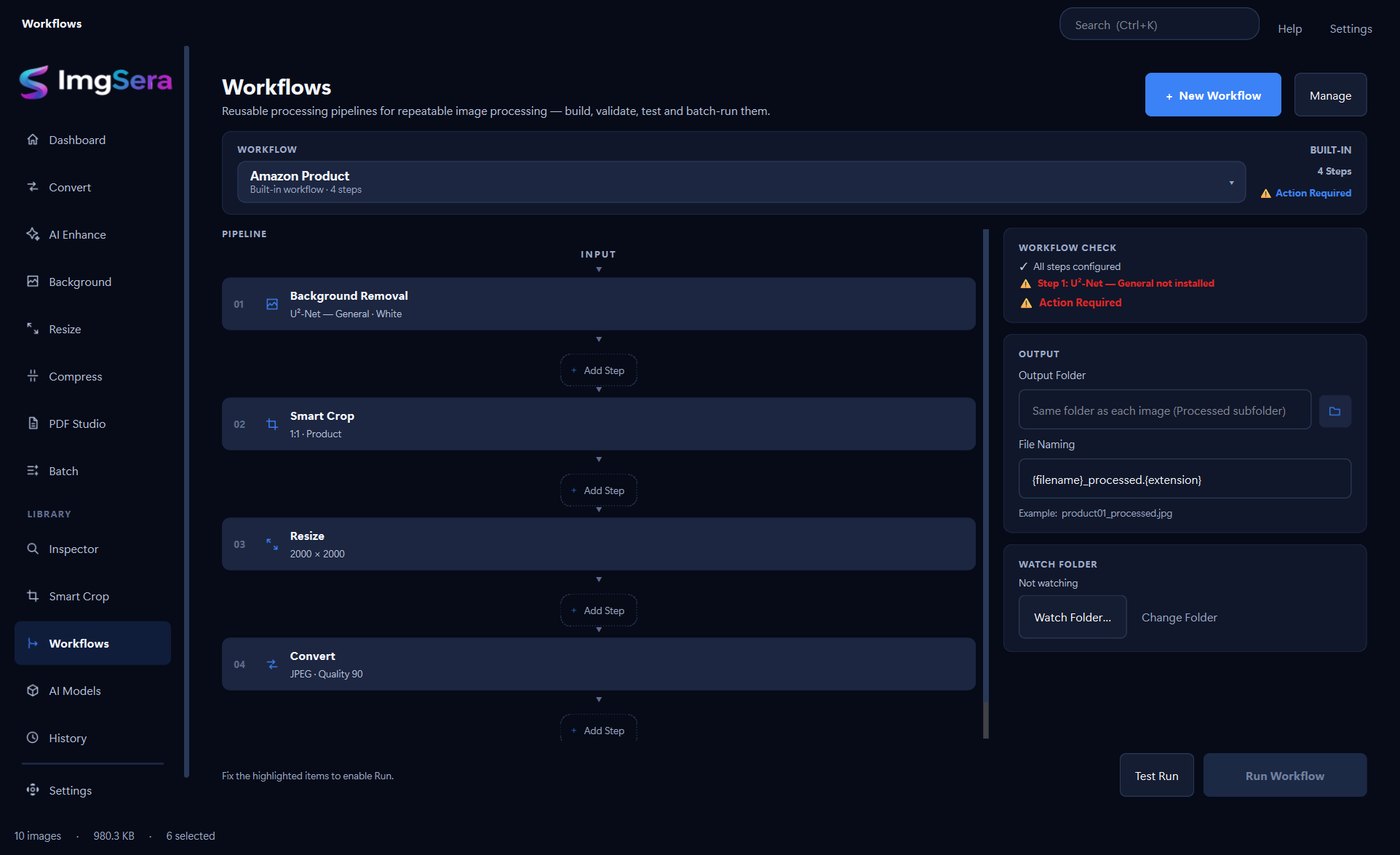
The Workflows workspace is where the individual tools become a process. Build a pipeline in the editor, check each step, then run it over a whole folder and watch it execute.
- Amazon Product, Website Optimized and Product Studio built in
- Create and manage your own, saved between sessions
- Ask Sera drafts a pipeline from a plain-language description
Batch
Thousands of files, still responsive
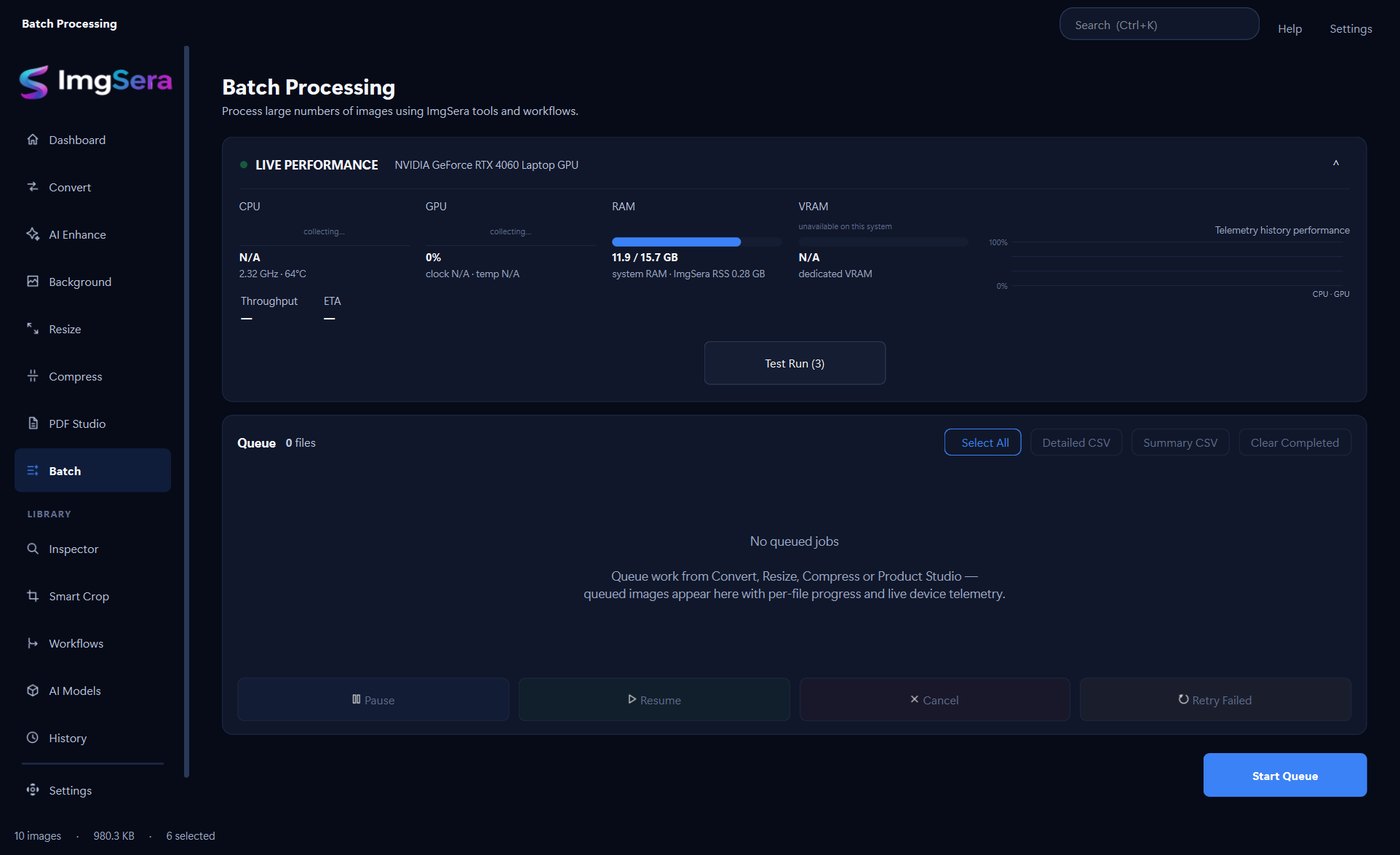
Queue work from Convert, Resize, Compress or a workflow through one pipeline. A bounded, adaptive worker pool keeps the interface responsive, and every file is verified before it is processed.
- Live per-file progress with output paths and status
- Pause, cancel, retry failed, export a report
- Live CPU, GPU, RAM and VRAM telemetry while it runs
- Outputs written atomically — never half-finished
Privacy by architecture
Your images never leave your computer
Web converters have to upload your images to work. ImgSera does not. Processing happens on your own machine, so your files stay yours — and everything keeps working with the network unplugged.
-
Your images never leave your computer
Conversion, resizing, compression, PDF work, batch processing and AI inference all run locally. There is no upload step anywhere in the application.
-
No account, no telemetry
ImgSera has no sign-in and no analytics. There are no update pings, no crash reporting and no “phone home” behaviour in normal use.
-
Network only when you ask
The only network request is an AI model download that you explicitly trigger. Everything works with the network cable unplugged afterwards.
-
GPS stripped by default
Location data is removed on export by default, and full EXIF stripping is a single click away in every tool.
-
Your originals are never touched by default
ImgSera exports copies. “Overwrite originals” exists, but it is off unless you turn it on.
-
Files validated by content
Imports are checked structurally with size ceilings and decompression-bomb protection before decoding — not merely by file extension.
Workflow
Import, edit, export
The same three steps whether you are preparing one product photograph or a batch of two hundred.
- 01
Import
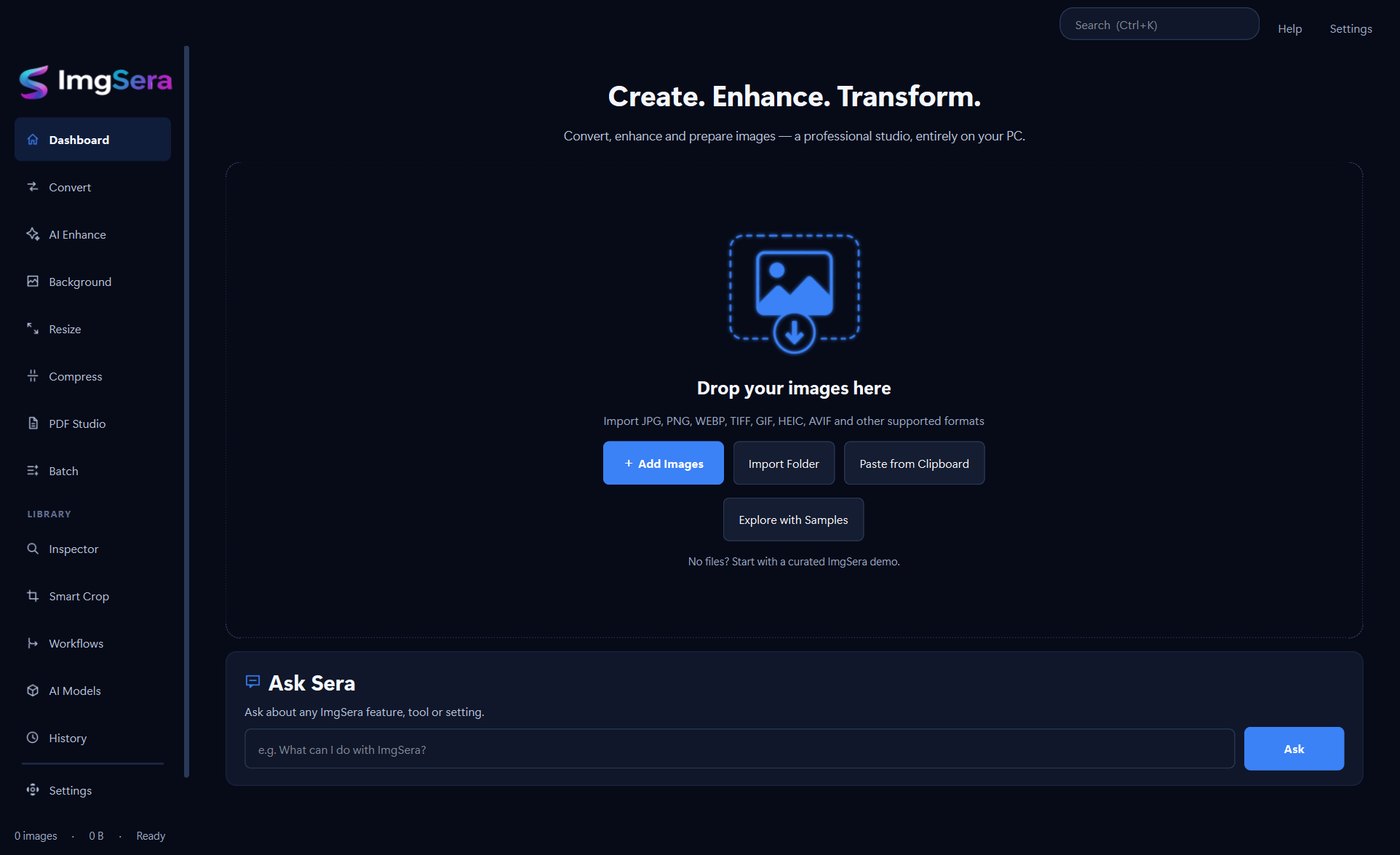
Drag and drop images onto the window, pick files, or add a whole folder including subfolders. Every file is validated by content before it is decoded.
- 02
Edit
Pick a tool, adjust its settings, and preview the result. With a selection active the tool processes that selection; with nothing selected it processes everything you imported.
- 03
Export
Choose an output folder and let the queue run. Files are written atomically, so a cancelled job never leaves a corrupt export behind.
Import what you already have
ImgSera imports JPG, PNG, WEBP, TIFF, GIF, HEIC, AVIF, BMP and other supported formats. Drop images onto the window, add a folder including subfolders, or paste from the clipboard.
- JPG
- PNG
- WEBP
- TIFF
- GIF
- HEIC
- AVIF
- BMP
Six built-in themes
The application ships with six interface themes. Follow your system, or choose the one that suits the room you are working in.
- Midnight Aurora The default. Deep navy surfaces with a blue accent.
- Pearl White The light theme. Clean, bright surfaces for daylight work.
- Carbon Black True-black background with neutral grey surfaces.
- Arctic Blue Cool blue-teal surfaces with a brighter cyan hover accent.
- Royal Violet Violet accent on a deep purple base.
- Sunset Rose Magenta accent on a warm dark base.
Ready to prepare your images?
ImgSera runs entirely on your Windows machine — no account, no uploads, no subscription required to get started.
Releases are being finalised. The download page shows the current status honestly.